
Save and share a rap video from your phone
Check the saved video, sound, crop and selected version before uploading it to another app.
The short answer
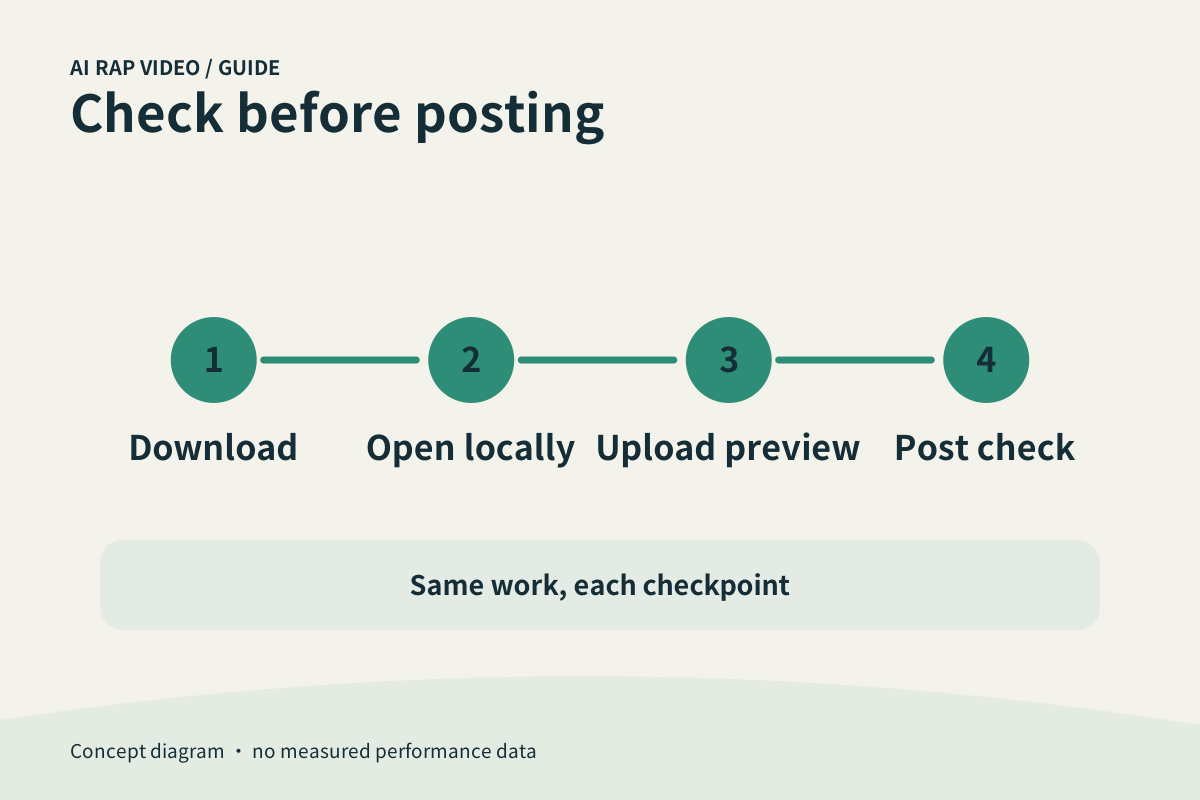
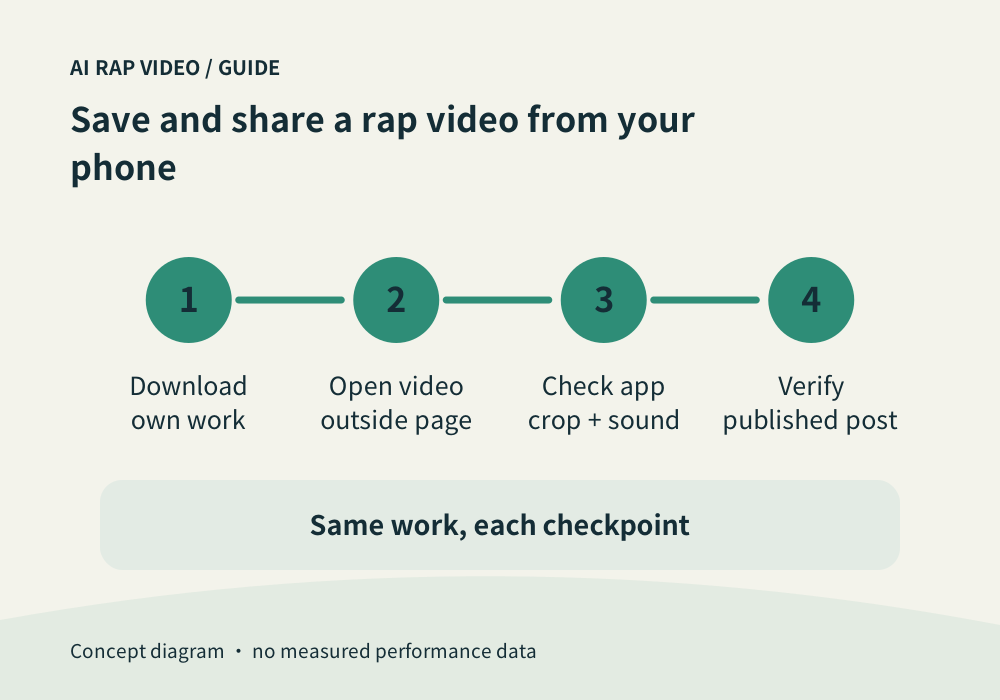
First download and open the actual video on your phone. Then choose that file in the sharing app and check its upload preview. This prevents a cover, an older attempt or a newly cropped version from being mistaken for the clip you reviewed.
In this guide
At a glance
| Review point | What to check |
|---|---|
| Confirm the selected work on the phone | Open your own work and inspect its title or thumbnail. |
| Find the actual saved video | Use the work’s download control and follow the browser’s displayed save flow. |
| Upload the reviewed version | In the destination app, choose the downloaded video you just checked. |
| Inspect the destination crop and sound | Another app may display a different crop or place its own controls over the image. |
| Choose the audience deliberately | Check visibility, caption and the people shown before posting. |
Confirm the selected work on the phone
Open your own work and inspect its title or thumbnail. If several attempts exist, play enough to recognize the selected version, then review it fully before downloading.
Turn on sound and check the ending. A small phone screen can make a clipped hand or second performer easy to miss; open the main player and inspect the full frame.
Find the actual saved video
Use the work’s download control and follow the browser’s displayed save flow. Where a phone places downloads depends on its browser and settings; inspect its download list or file manager.
Open the video from that location and play it independently. A screenshot or poster may look similar in a picker, so check that the selected item is a playable video with the expected ending.
Upload the reviewed version
In the destination app, choose the downloaded video you just checked. Similar thumbnails can hide different attempts. A clear local filename helps distinguish originals from edited copies.
Keep the original until the uploaded post is confirmed. If an app creates an export, wait for it and inspect its preview; selecting a file is not proof that the upload or post has completed.
Inspect the destination crop and sound
Another app may display a different crop or place its own controls over the image. Check both performers, names and essential gestures throughout the preview rather than only at the first frame.
Listen again if you add music or adjust volume. Replacing sound can change the relationship between mouth movement and the track; a visually similar edit is not automatically the same performance.
Choose the audience deliberately
Check visibility, caption and the people shown before posting. Ask permission when sharing another person’s likeness, and describe a generated performance accurately when context matters.
After posting, play the published item where possible to confirm it finished uploading and kept the intended sound. A local save, an upload preview and a visible post are separate checkpoints. Contact support
Questions about this task
Follow your browser’s actual download flow and check its downloads or file manager; the location depends on the device and settings.