
Preview and download the right rap video
Follow one selected work through full playback and verify the downloaded file before saving or sharing it.
The short answer
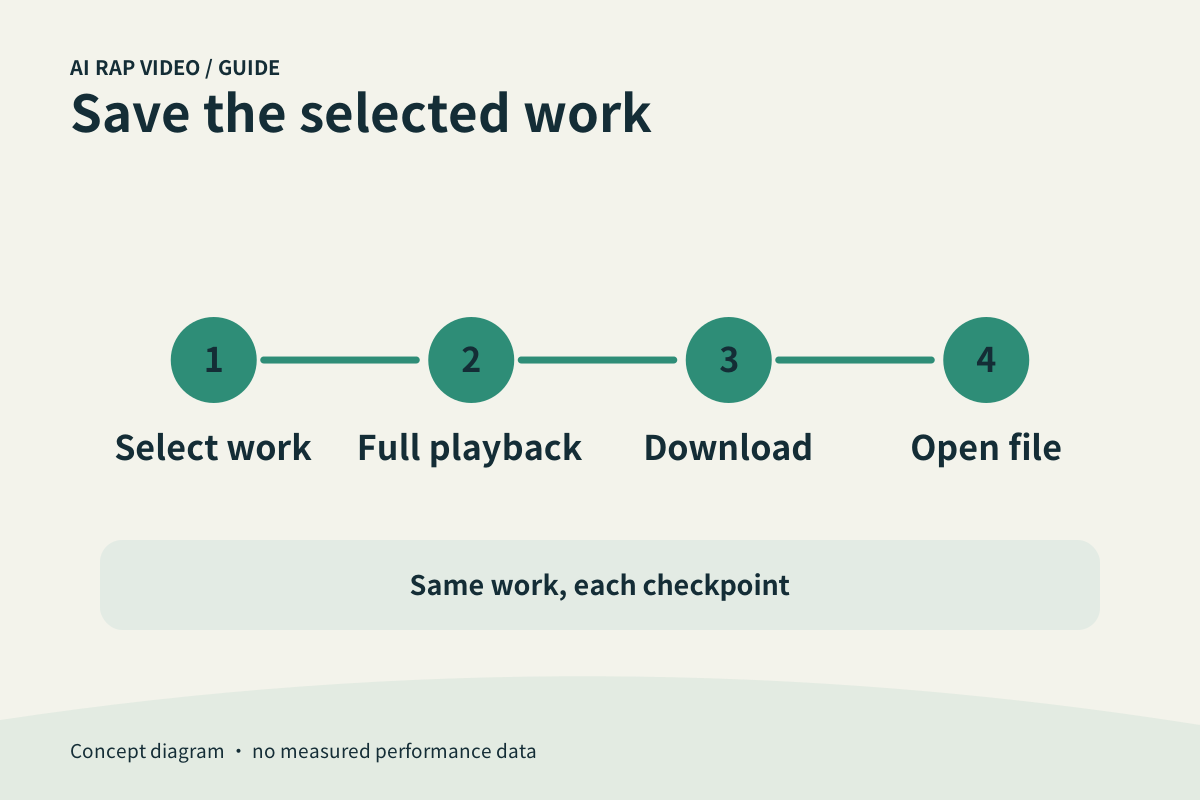
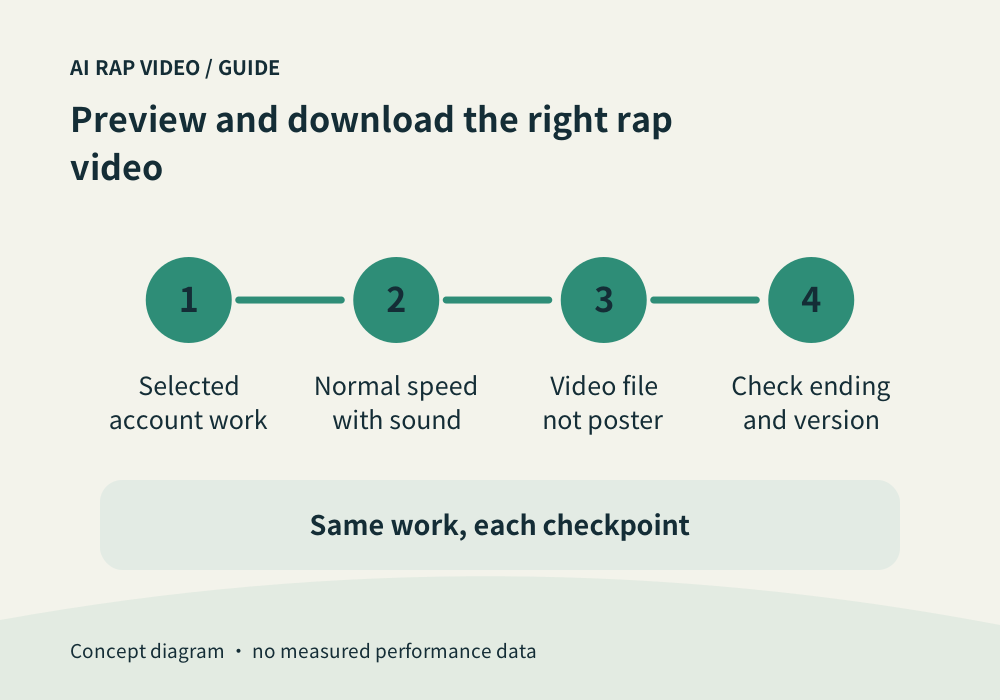
Select your own work, play the complete clip and download that same version. Open the saved file to confirm its sound, ending and identity. A cover image, an example preview and your generated video are different resources.
In this guide
At a glance
| Review point | What to check |
|---|---|
| Select a work you recognize | Check the work’s title, thumbnail and available status. |
| Play the complete selected output | Start at the beginning and let the player reach the ending at normal speed. |
| Use the work’s download action | Download from the selected work’s own control. |
| Open the saved file independently | Find the actual download in the device’s file manager or browser download list. |
| Keep an original before editing | Retain the downloaded original before cropping, captioning or re-exporting. |
Select a work you recognize
Check the work’s title, thumbnail and available status. If there are several attempts, select the one you intend to keep rather than relying on whichever preview happened to be open.
Read any example or reference label. A public sample can remain playable while your own task is still processing; the sample is not proof that your task has completed.
Play the complete selected output
Start at the beginning and let the player reach the ending at normal speed. Turn on sound deliberately and check both performers, the handovers and final phrase.
If playback stops, distinguish a paused player, a buffering connection and an unavailable output. Follow the same work record before assuming the generator needs another submission.
Use the work’s download action
Download from the selected work’s own control. Saving a poster, taking a screenshot or copying a player thumbnail does not save the video. Keep the tab open while the transfer begins.
If access is denied or the resource is unavailable, return to the signed-in work and try its current download action. Resource links can have access restrictions; repeated generation is not a download repair.
Open the saved file independently
Find the actual download in the device’s file manager or browser download list. Play it outside the page and verify that it starts, includes sound when expected and reaches the same ending.
Compare the file with the selected work, especially after several attempts. Use a clear local filename or folder to distinguish reviewed originals from edited copies and older downloads.
Keep an original before editing
Retain the downloaded original before cropping, captioning or re-exporting. Changes in another editor can affect the frame and sound, so review that exported copy separately.
If the download remains unavailable, note the work, time and displayed message for Contact. Do not share private links in a public post, and do not treat a successful click as proof that the file is saved. Contact support
Questions about this task
No. A poster is a still image. Use the selected work’s video download action.