
Recover from a slow or failed photo upload
Distinguish local selection, upload completion and task submission to recover your draft without duplicate jobs.
The short answer
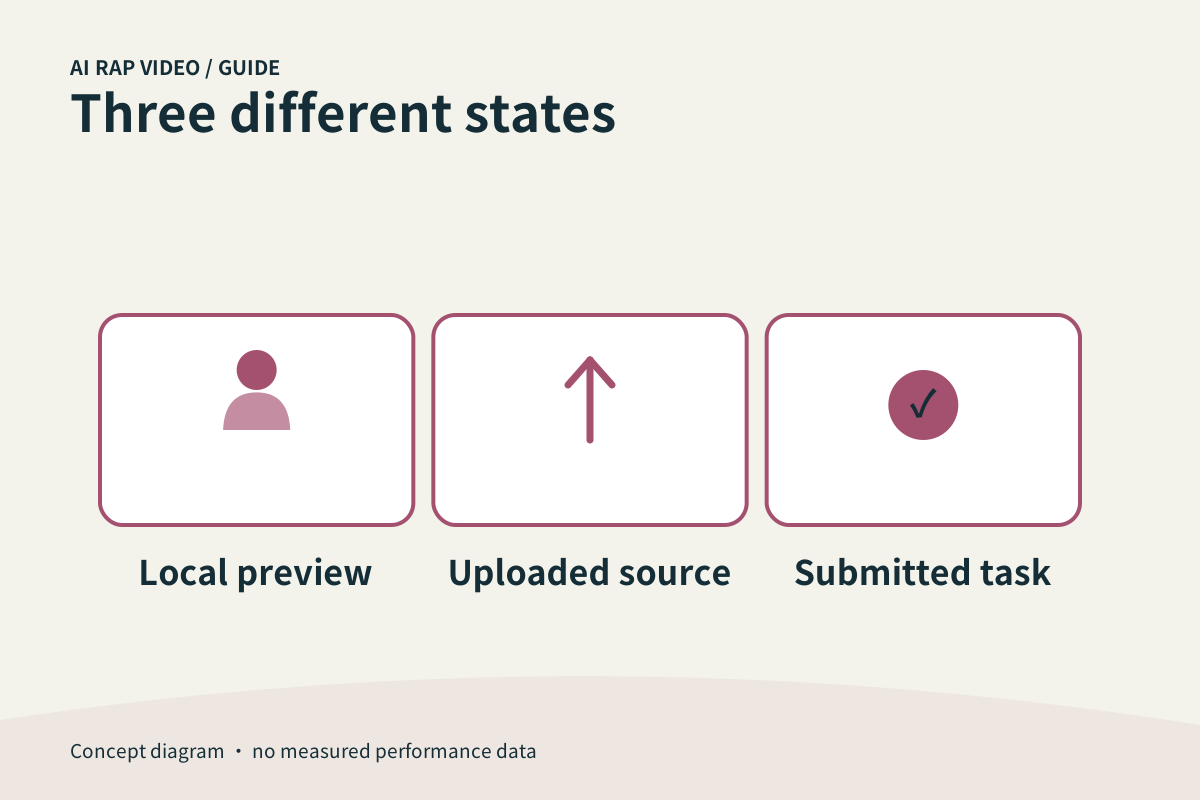
A photo appearing on screen can be a local preview. Wait for the studio’s upload state before submitting. If a transfer fails, keep the draft and identify which stage failed; do not treat every upload problem as a failed video generation.
In this guide
At a glance
| Review point | What to check |
|---|---|
| Identify the stage that failed | Selecting a file gives the browser a local image to show. |
| Read the actual file requirement | Use the formats and file limit stated by the current uploader. |
| Give a slow transfer one clear attempt | Check the connection and wait for the displayed upload state. |
| Recover the draft before generating | If sign-in or navigation interrupted the flow, return to the studio and inspect the restored draft. |
| Check task history after an uncertain submit | If the uncertainty happened after Generate, inspect work history before resubmitting. |
Identify the stage that failed
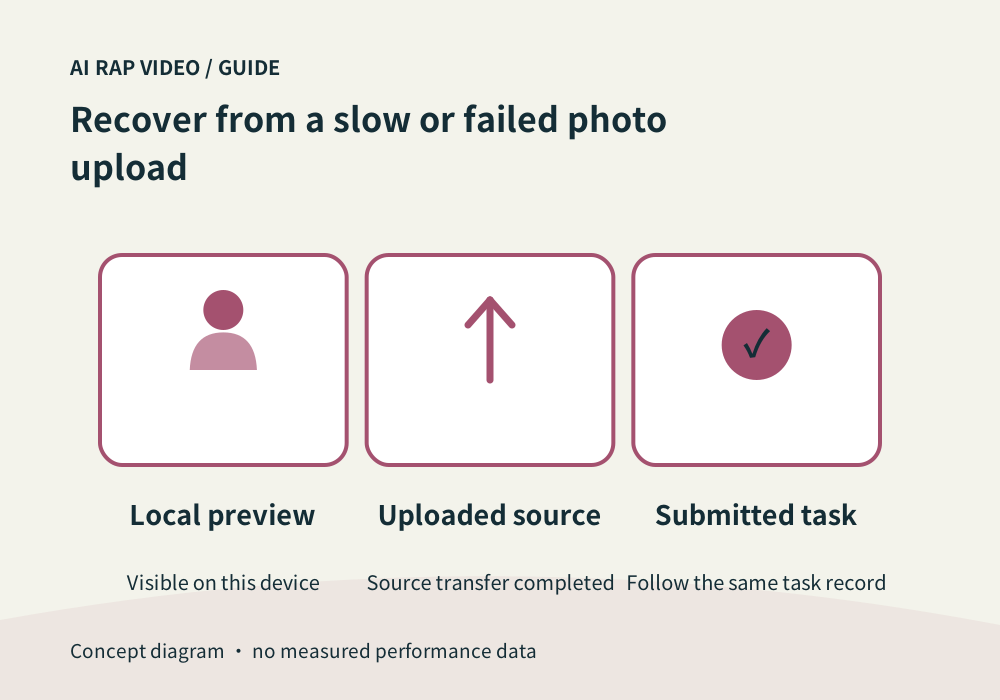
Selecting a file gives the browser a local image to show. Uploading transfers the source for the generation workflow. Submitting starts the separate task flow. Check the message beside the photo field before deciding what to repeat.
A local thumbnail alone does not prove upload completion. Likewise, an uploaded portrait does not prove a billable video was submitted. Keep these states separate when checking history and credits.
Read the actual file requirement
Use the formats and file limit stated by the current uploader. If it rejects the file, open the original and export a compatible copy with a suitable name. Do not just rename an unsupported extension.
Inspect the copy after conversion. Check orientation, face detail and whether transparency or compression has changed anything important. Keep the original source so you can compare the chosen upload.
Give a slow transfer one clear attempt
Check the connection and wait for the displayed upload state. Avoid rapidly replacing the same portrait while a transfer is still running; that can make it harder to know which image belongs to the current draft.
If a clear failure appears, retry that photo field and verify its completion. In a duo, confirm both fields and their order. A successful first portrait does not establish that the second has completed.
Recover the draft before generating
If sign-in or navigation interrupted the flow, return to the studio and inspect the restored draft. Check photos, names and available settings rather than assuming every local file can survive a browser reload.
Some circumstances can require selecting a file again. Follow the actual message and verify the current quote only after inputs are ready. Upload recovery should not require blindly submitting another video.
Check task history after an uncertain submit
If the uncertainty happened after Generate, inspect work history before resubmitting. Keep the task identifier when one appears. A disconnected page can leave a task running even though the browser did not display its next state.
For support, provide the failed stage, file type and size, device and error text. Leave account secrets and private resource links out of public reports. Check credits against the same operation, not an unrelated earlier task. Contact support
Questions about this task
No. It may be a local preview. Use the current upload state.