
Choose photos and share rap videos with care
Check consent, background details, private resource links and publication choices before making a portrait-led rap video.
The short answer
Use photos you have permission to use, avoid unnecessary sensitive details and keep private resource links private. Creating a video and publishing it are separate decisions. Review the actual result with everyone involved before sharing it with a wider audience.
In this guide
At a glance
| Review point | What to check |
|---|---|
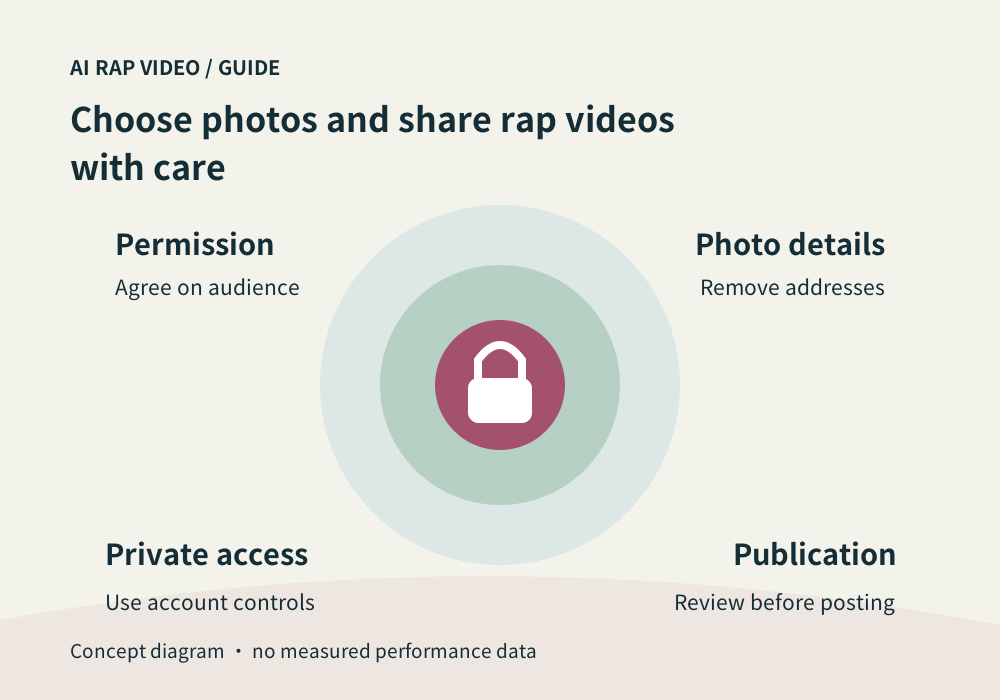
| Agree on the intended use | Ask each participant whether the planned theme and audience are acceptable. |
| Remove details the task does not need | Inspect the full image before uploading, including its corners. |
| Treat account media as private resources | Use the signed-in work controls to access your output. |
| Review the generated portrayal before sharing | Watch the complete clip for the people, words and context it appears to show. |
| Use the policy and support for account questions | Read the current Privacy Policy for data-handling terms rather than relying on a tutorial to promise retention periods or deletion guarantees. |
Agree on the intended use
Ask each participant whether the planned theme and audience are acceptable. A private birthday clip and a public promotional post can create different expectations even when they use the same portrait.
Permission to hold someone’s photograph does not automatically settle every generated performance or publication. Choose a source and a topic that fit the permission you actually have.
Remove details the task does not need
Inspect the full image before uploading, including its corners. Addresses, documents, employee badges and other people can appear in a background you barely noticed in a small preview.
Use another image or a suitable local crop when that information is unnecessary. Keep enough relevant face detail for the video. Removing irrelevant background is different from editing someone into a misleading identity.
Treat account media as private resources
Use the signed-in work controls to access your output. A resource URL can contain access information; avoid pasting it into public posts, issue trackers or screenshots.
A public example on the site and a private work in your account are different kinds of material. Do not infer that your work is public merely because an example carousel is visible nearby.
Review the generated portrayal before sharing
Watch the complete clip for the people, words and context it appears to show. Make clear that the performance is generated when the audience could otherwise mistake it for an actual recording.
Ask before posting a friend’s likeness or a joke about them. A harmless private reference may read differently without context. Keep an original download and share only the version you reviewed.
Use the policy and support for account questions
Read the current Privacy Policy for data-handling terms rather than relying on a tutorial to promise retention periods or deletion guarantees. Use Contact for a specific account or resource concern.
Provide the work identifier and the minimum needed description. Do not include authentication secrets or payment details. If you need to discuss a sensitive image, avoid sending it publicly as part of a general bug report. Contact support
Questions about this task
No. Decide on publication separately and consider everyone shown, the words and the audience.